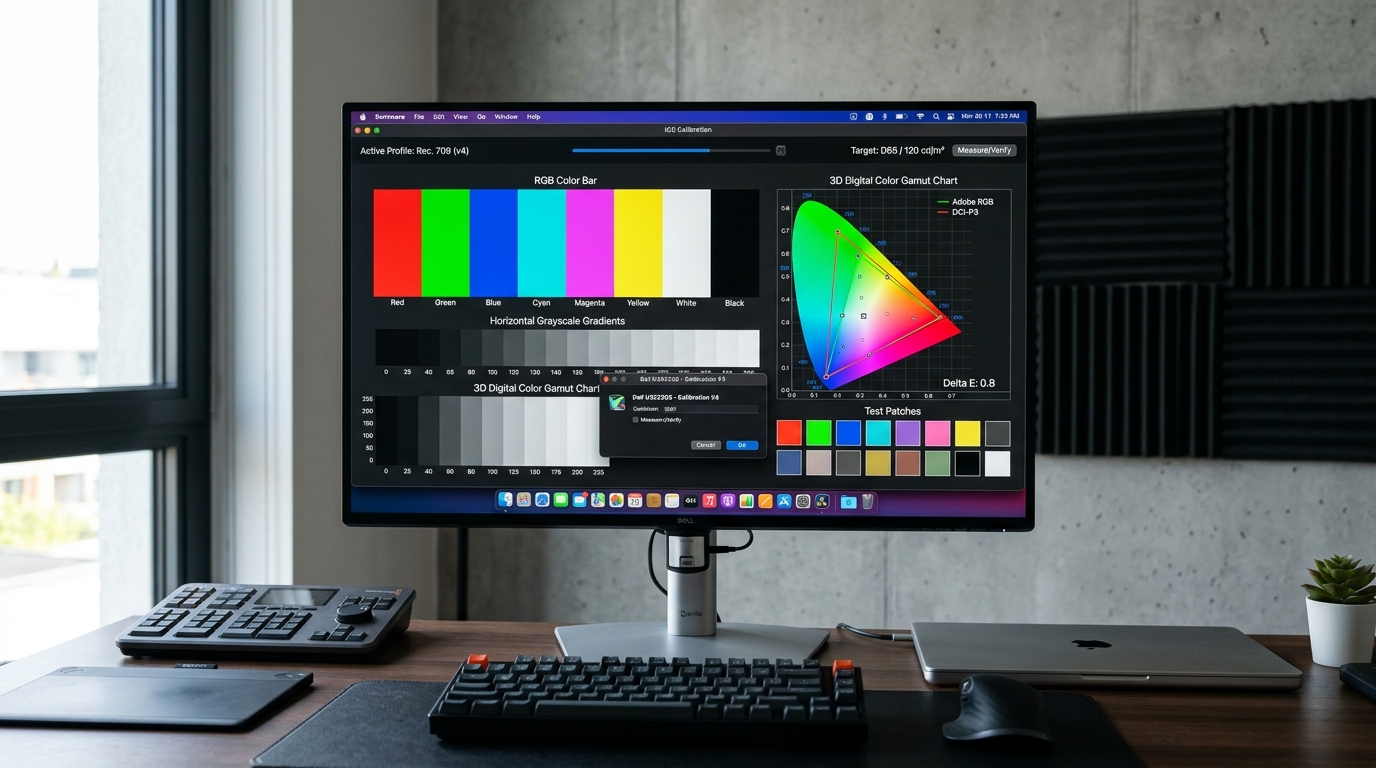
Few things are as frustrating as plugging in a brand-new desktop monitor or connecting an external display to your laptop only to find that colors look unnatural, overly saturated, washed out, or tinged with a persistent yellow or green tint. When text looks murky, skin tones appear sunburned, or photo edits look completely different on your phone than on your computer screen, the culprit is almost always an incorrect or corrupted ICC color profile.
Color management is one of the most misunderstood areas of personal computing. Both Windows 11 and macOS rely on ICC color profiles (files ending in .icc or .icm) to translate the raw digital numbers representing red, green, and blue into the exact physical light output that your monitor hardware produces. When these profiles become mismatched, corrupted, or overridden by conflicting graphics drivers or HDR settings, your display accuracy degrades rapidly.
Before assuming your monitor has a hardware defect, running our free dead pixel test and checking your screen with our grayscale gradient test will help determine whether the issue is a physical panel defect or a software color management conflict. In this comprehensive guide, we explore how ICC profiles function, why monitor colors go wrong, and step-by-step methods to configure, install, remove, and calibrate color profiles across Windows 11 and macOS.
Table of Contents
- 1. What Is an ICC Color Profile?
- 2. Why Monitor Colors Look Wrong
- 3. How to Check ICC Profiles in Windows 11
- 4. How to Remove a Problematic Profile
- 5. How to Install an ICC/ICM Profile in Windows
- 6. Windows HDR and Night Light Conflicts
- 7. Monitor Hardware OSD Settings & Picture Modes
- 8. macOS ColorSync Utility & Display Profiles
- 9. macOS Built-In Display Calibration
- 10. True Tone, Night Shift & External Displays
- 11. Standard sRGB vs. Custom ICC Profiles
- 12. Common ICC Profile Problems & Fixes
- 13. When Hardware Colorimeter Calibration Is Useful
- 14. Frequently Asked Questions
1. What Is an ICC Color Profile? (.icc & .icm)
An ICC profile is a standardized binary file established by the International Color Consortium (ICC) that defines how a particular input, display, or output device handles color. In the context of computer screens, an ICC profile acts as a digital dictionary for your operating system: it tells Windows or macOS the precise color boundaries (color gamut), white point chromaticity, and tone reproduction curve (gamma) that your specific monitor produces.
ICC profiles commonly use two file extensions:
.icc: The universal International Color Consortium specification format used across macOS, Linux, and Windows..icm: Image Color Management format, historically associated with Microsoft Windows operating systems. Functionally,.icmand.iccfiles are identical and can be used interchangeably by modern color management systems.
Inside an ICC profile is a mathematical lookup table (LUT) and chromaticity coordinate data. When an application renders a photo, web page, or digital graphic authored in the standard sRGB or Display P3 color space, the operating system's color engine consults the active ICC profile to translate those source color values into the correct hardware signal sent through your HDMI or DisplayPort connection.
2. Why Monitor Colors Look Wrong
Display color issues stem from several common software, hardware, and environmental factors:
Wide Gamut Oversaturation
Modern gaming and creator monitors often cover 95%+ of the wide DCI-P3 gamut. Without proper color management, standard sRGB web content stretches across the wide gamut, making reds look neon and skin tones look radioactive.
Corrupted or Generic Profiles
Generic Plug-and-Play monitor drivers or third-party downloaded profiles from other users can introduce unwanted color casts, severe gamma shifts, or crushed dark shadow details.
HDR & SDR Tone Mapping
Enabling Windows 11 HDR forces desktop applications into an HDR container. On monitors with modest peak brightness, this can cause desktop colors to appear washed out, grey, and dull.
Night Light & True Tone
Automated features like Windows Night Light, macOS Night Shift, or Apple True Tone dynamically shift the white point toward warm amber, which interferes with color-accurate workflows.
If you notice severe stepping or blocky bands in color transitions alongside inaccurate tones, you may also be dealing with bit-depth limitations or GPU quantization range issues. Review our guide on how to fix color banding & bad color accuracy for deeper GPU configuration steps.
3. How to Check ICC Profiles in Windows 11
Windows 11 includes modern settings alongside the classic Color Management control panel applet. Here is how to inspect which color profile is currently active:
Method A: Via Windows 11 Settings
- Open Settings (press Win + I).
- Navigate to System > Display.
- If you have multiple monitors, click and select the display you want to inspect.
- Look for the Color profile dropdown menu. It displays the active profile assigned to that display (e.g. sRGB IEC61966-2.1 or your manufacturer's custom profile).
- If Auto Color Management (ACM) is available on your hardware, you can toggle Automatically manage color for apps.
Method B: Via Classic Color Management (colorcpl.exe)
- Press Win + R, type
colorcpl, and press Enter. - Under the Devices tab, select your monitor from the Device dropdown.
- Ensure the box labeled Use my settings for this device is checked.
- Review the list titled Profiles associated with this device. The profile marked
(default)is the active profile Windows applies to that screen.
4. How to Remove a Problematic or Corrupted Profile
If your monitor looks unusually yellow, red, or dark after a Windows update or driver installation, removing the custom profile and reverting to the industry-standard sRGB profile will immediately reset your color pipeline:
- Open the classic Color Management applet (
Win + R>colorcpl). - Select your target display from the Device dropdown.
- Check Use my settings for this device.
- Select the suspicious or unwanted profile from the list and click the Remove button. (Note: This only disassociates the profile from the display; it does not delete the file from your hard drive).
- Click Add..., scroll down through the list, select sRGB IEC61966-2.1, and click OK.
- Highlight sRGB IEC61966-2.1 and click Set as Default Profile.
- Click the Advanced tab and verify that Device profile is set to System default (sRGB IEC61966-2.1).
- Click Close and restart your system or log out to ensure all running applications reload the clean sRGB profile.
5. How to Install a Monitor ICC/ICM Profile in Windows 11
If your monitor manufacturer (such as Dell, LG, ASUS, BenQ, or Samsung) provides an official color profile driver package on their support website, you can install it directly:
- Download the official driver package from your manufacturer's support portal and extract the ZIP file to find the
.iccor.icmfile. - Right-click the
.iccor.icmfile and select Install Profile. Windows copies the file intoC:\Windows\System32\spool\drivers\color. - Open Color Management (
colorcpl) and select your target display. - Check Use my settings for this device, then click Add....
- Select your newly installed profile from the list and click OK.
- Select the profile in the list and click Set as Default Profile.
6. Windows HDR and Night Light Conflicts
Windows HDR is a frequent cause of color complaints. When you toggle HDR ON in Windows 11 (Win + Alt + B), the Windows desktop switches from the standard sRGB gamma 2.2 curve to the high dynamic range BT.2020/PQ curve.
Because web browsers, email clients, and desktop UI elements are built in standard dynamic range (SDR), Windows performs tone mapping to project SDR content inside the HDR container. On monitors with entry-level HDR (such as edge-lit displays with DisplayHDR 400 certification), this process often leaves the desktop looking dull, flat, and washed out.
How to Optimize Windows 11 HDR Desktop Appearance:
- Go to Settings > System > Display > HDR.
- Adjust the SDR content brightness slider. Increasing this slider brightens standard desktop applications without crushing peak HDR highlight performance in games and video.
- Install the free Windows HDR Calibration app from the Microsoft Store to generate a custom HDR profile tailored to your monitor's true peak nit luminance and black levels.
- Turn off Night Light (Settings > System > Display > Night light) whenever performing color-critical work, as it injects an artificial 3000K-4500K warm tint.
7. Monitor Hardware OSD Settings & Picture Modes
An ICC profile only works effectively if the physical monitor settings are aligned with standard targets. If your monitor hardware is set to an inaccurate preset, software ICC corrections will be fighting the physical display panel.
Open your monitor's physical On-Screen Display (OSD) menu using the buttons or joystick on the back/bottom of your panel and verify these baseline settings:
- Picture Mode: Choose Standard, Custom, or User. Avoid artificial enhancement modes such as FPS, RTS, Vivid, Cinema, or Dynamic Contrast, which heavily distort color curves and sharpness.
- Color Temperature: Set to Warm, 6500K, or D65. The Cool or 9300K presets add excessive blue light.
- Gamma Preset: Set to Gamma 2.2 (the standard for web and PC content).
- sRGB Clamp Mode: If your wide-gamut monitor has an sRGB Mode or sRGB Emulation preset in its OSD, enabling it will clamp the color gamut at the hardware level, instantly fixing oversaturated neon colors across all applications.
- RGB Gain Balance: Ensure Red, Green, and Blue gain sliders are set to neutral 50/50/50 or 100/100/100 default values unless adjusted with a hardware colorimeter.
8. macOS ColorSync Utility & Display Profiles
macOS is renowned for its system-wide color management architecture. Apple's ColorSync engine automatically manages color profiles across all native applications, Retina displays, and connected external screens.
To inspect and adjust color profiles on a Mac (MacBook, iMac, Mac mini, Mac Studio, or Mac Pro):
- Open System Settings (from the Apple menu ).
- Click Displays in the sidebar.
- Select the display you want to adjust at the top of the window.
- Locate the Color profile dropdown. For built-in Retina displays, Apple defaults to Color LCD or custom reference presets like Apple Display (P3-500 nits).
- For external monitors, choose the profile designated for your monitor model or select sRGB IEC61966-2.1 or Display P3.
- To inspect profile tags and chromaticity coordinates in detail, open ColorSync Utility (located in
/Applications/Utilities/ColorSync Utility.app) and navigate to the Profiles tab.
9. macOS Built-In Display Calibration (Expert Mode)
macOS includes an integrated software calibration assistant that allows you to adjust gamma curves and target white points visually without third-party tools:
- Open System Settings > Displays.
- Click the Color profile dropdown and select Customize....
- Click the + (Add) button or hold the Option (⌥) key while clicking to launch the Display Calibrator Assistant.
- Check the box for Expert Mode.
- Follow the step-by-step visual calibration patterns to balance your display's luminance response across five progressive gamma steps.
- Set the target gamma to 2.2 (Standard) and select the target white point to D65 (6500 K).
- Give your calibrated profile a descriptive name (e.g. External Monitor Calibrated D65) and save it.
10. True Tone, Night Shift & External Displays on macOS
If your Mac display or external monitor displays an unwanted warm or yellowish tint, two built-in macOS lighting technologies are often the cause:
Key macOS Display Features to Check:
- True Tone: Uses multi-channel ambient light sensors on your Mac to dynamically alter the screen's white point to match the ambient lighting of your room. While pleasant for reading, it distorts true color accuracy. Disable it under System Settings > Displays > True Tone when editing photos, grading video, or evaluating screens.
- Night Shift: Automatically shifts screen colors to the warmer end of the spectrum after sunset to reduce eye fatigue. Turn it off or check its schedule under System Settings > Displays > Night Shift.
- RGB vs. YPbPr Color Output Bug: In certain macOS versions, external monitors connected via HDMI or USB-C to DisplayPort adapters are mistakenly detected as televisions, causing macOS to output compressed YPbPr color rather than Full RGB 4:4:4. If text looks fuzzy or colors look washed out, verify that your monitor OSD reports input format as RGB Full, or use free utility tools like BetterDisplay to force RGB output. You can also verify your display rendering sharpness with our screen resolution & scaling test.
11. Standard sRGB vs. Custom ICC Profiles
Understanding when to use standard generic profiles versus manufacturer or custom profiles is essential for clean color management:
| Profile Type | Best Used For | Pros | Limitations |
|---|---|---|---|
| sRGB IEC61966-2.1 | General web browsing, gaming, office work, daily productivity | 100% universal standard; never causes banding or corrupt color shifts | Does not utilize wide-gamut capabilities of DCI-P3/Adobe RGB panels |
| Manufacturer ICC Profile | Standard setup using official manufacturer driver disk/download | Communicates panel color gamut boundaries accurately to Windows | Averages factory batch tolerances; not customized to your individual panel |
| Hardware Calibrated Profile | Professional photo editing, color grading, print prep, design | Measures exact physical light emission with spectrophotometer/colorimeter | Requires dedicated hardware colorimeter device; degrades as backlight ages |
| Downloaded Third-Party Profile | Not recommended for color-critical work | Free to download from monitor review forums | High risk of color casts, black crush, and banding due to panel variance |
12. Common ICC Profile Problems & Fixes
Use this troubleshooting matrix to quickly resolve specific display color symptoms:
- Symptom: Screen has an intense yellow or orange tint.
Fix: Disable Windows Night Light or macOS Night Shift. Check if macOS True Tone is enabled. In Windows Color Management, ensure default profile is set to sRGB IEC61966-2.1. Check monitor physical OSD color temperature and set to 6500K / Neutral. - Symptom: Colors look neon, over-saturated, and skin tones look red.
Fix: Your wide-gamut monitor is displaying sRGB content in unmanaged native gamut mode. Enable sRGB Mode in the monitor's physical OSD, or enable Automatically manage color for apps in Windows 11 Display Settings. - Symptom: Desktop looks washed-out, grey, and foggy.
Fix: If HDR is enabled, increase the SDR Content Brightness slider in Windows Display Settings. In NVIDIA/AMD graphics control panels, verify that Output Dynamic Range is set to Full (0–255) rather than Limited (16–235). - Symptom: Shadows are completely crushed into pure black (loss of shadow detail).
Fix: A third-party ICC profile has applied an overly steep gamma curve. Remove the custom profile and revert to default sRGB. Check monitor OSD Black Level/Black Equalizer settings and verify gamma with our grayscale gradient test. - Symptom: Colors shift back to default when launching fullscreen games.
Fix: Exclusive fullscreen games often bypass the desktop Windows ICC profile LUT. Run games in Borderless Windowed mode, or use utility software like ColorControl to enforce desktop ICC profile persistence.
13. When Hardware Colorimeter Calibration Is Useful
While software profiles and factory sRGB clamp modes are sufficient for gaming, office productivity, and everyday multimedia, professional content creators (photographers, video colorists, digital illustrators, and print designers) benefit from hardware calibration.
Hardware colorimeters (such as the Calibrite Display Plus HL or Datacolor SpyderX2) physically mount to your screen and use optical sensors to measure actual light emission across hundreds of color patches. Calibration software (such as DisplayCAL or Calibrite PROFILER) then generates a bespoke 3D LUT profile mapped to your monitor's unique panel wear and ambient room lux.
Before beginning any hardware calibration process, ensure your display is physically free of dead pixels and uniformity defects using our complete monitor screen inspection checklist and test backlight bleed with our backlight bleed test.
14. Frequently Asked Questions
An ICC profile (International Color Consortium) is a standardized data file that describes the exact color reproduction characteristics, color gamut, and gamma curves of a monitor. Operating systems use ICC profiles to accurately map digital color numbers into visible hues. They typically carry the .icc or .icm file extensions.
Oversaturated colors usually happen when a wide-gamut monitor (covering DCI-P3 or Adobe RGB) displays standard sRGB content without color management clamping. Standard applications send sRGB color values, but wide-gamut monitors stretch those values to their maximum physical color saturation unless an ICC profile or hardware sRGB clamp mode is active.
When HDR is enabled in Windows 11, the operating system converts all standard dynamic range (SDR) desktop elements into an HDR container. On monitors with modest peak brightness (such as DisplayHDR 400), this tone mapping can lower perceived contrast and luminance. Adjusting the SDR Content Brightness slider under Display > HDR helps restore vivid SDR desktop appearance.
In most cases, no. Manufacturing variations mean that two identical monitor models often have different panel revisions, backlight spectral outputs, and factory tunings. Loading someone else's calibrated ICC profile can cause black crush, unwanted color casts, or gradient banding. Using factory default profiles or calibrating with a dedicated hardware colorimeter is recommended.
A warm yellow tint on macOS is frequently caused by True Tone (which adjusts white point based on ambient room light) or Night Shift (which reduces blue light on a schedule). Go to System Settings > Displays and toggle off True Tone and Night Shift to restore neutral 6500K color balance.
Monitor OSD (On-Screen Display) settings directly adjust the physical hardware gains (RGB gain, backlight brightness, panel gamma presets). An ICC profile works in software inside Windows or macOS, creating a lookup table (LUT) that modifies the digital color signals sent by your graphics card before reaching the monitor.
Related Display Tests
Dead Pixel Test
Check your screen for dead, stuck, and hot pixels with fullscreen pure RGBW color backgrounds.
Run Dead Pixel Test →Grayscale Gradient Test
Check 256-step gradients, color banding, shadow detail, and tonal transitions across RGB channels.
Run Grayscale Test →Resolution & Scaling Test
Verify your display's reported screen resolution, DPR (Device Pixel Ratio), and OS scaling factor.
Check Resolution →