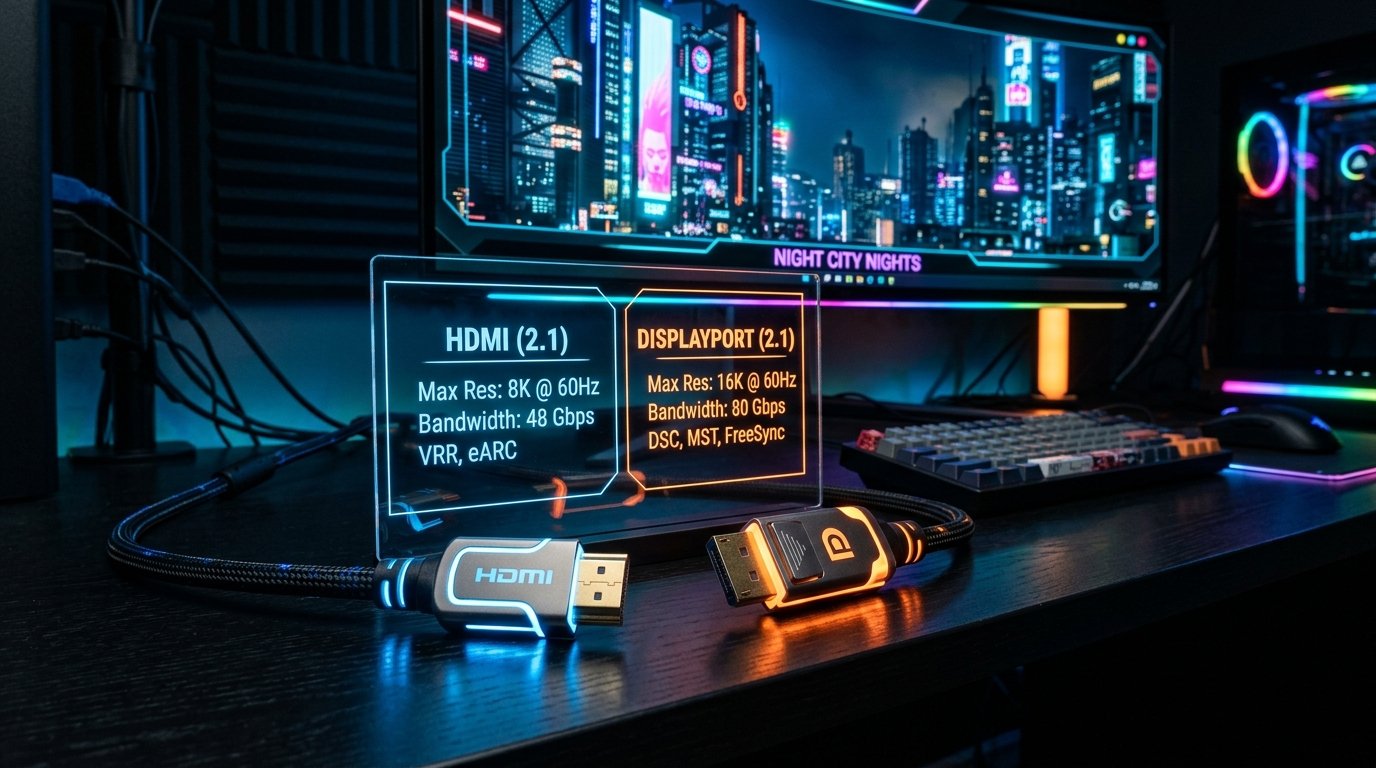
Setting up a new monitor or trying to push higher frame rates often comes down to a single detail that many users overlook: the display cable. Choosing between HDMI and DisplayPort directly affects your refresh rate, resolution, color accuracy, and variable refresh rate (VRR) features like G-Sync and FreeSync.
Using the wrong cable—or an older version of the right cable—can lead to frustrating display issues like screen flickering, signal drops, or being locked at 60Hz on a high-refresh-rate display.
Here is everything you need to know to pick the correct cable for your setup.
HDMI vs DisplayPort at a Glance
| Feature | HDMI (High-Definition Multimedia Interface) | DisplayPort |
|---|---|---|
| Primary Use Case | TVs, Gaming Consoles, Media Players, PCs | PC Gaming, Multi-Monitor Setups, Workstations |
| Latest Standards | HDMI 2.0 / HDMI 2.1 | DisplayPort 1.4 / DisplayPort 2.1 |
| Max Bandwidth | Up to 48 Gbps (HDMI 2.1) | Up to 80 Gbps (DisplayPort 2.1) |
| G-Sync Support | Limited (Requires HDMI 2.1 on compatible monitors) | Native (Supported across almost all versions) |
| Multi-Monitor Support | 1 Display per Port | Supports Daisy-Chaining (MST) |
| Physical Latch | No (Pulls straight out) | Yes (Locks securely into port) |
What Is DisplayPort and When Should You Use It?
DisplayPort was designed specifically for computers and high-performance displays. If you are gaming or working on a desktop PC with a dedicated graphics card, DisplayPort is almost always the default recommendation.
Key Advantages of DisplayPort:
- Higher Refresh Rates at High Resolutions: DisplayPort 1.4 easily handles 4K at 140Hz+ and 1440p at 240Hz. DisplayPort 2.1 pushes bandwidth even further for next-gen 8K and ultra-high-refresh-rate monitors.
- Flawless VRR Support: NVIDIA G-Sync and AMD FreeSync work seamlessly over DisplayPort across almost all monitor models.
- Daisy-Chaining (Multi-Stream Transport): DisplayPort allows you to connect multiple monitors to a single port on your GPU by chaining the monitors together.
What Is HDMI and When Should You Use It?
HDMI is the standard audio and video interface for consumer electronics. It is found on almost every TV, home theater receiver, console (PlayStation 5, Xbox Series X), laptop, and monitor.
Key Advantages of HDMI:
- Universal Compatibility: HDMI ports are available on virtually all display devices, making it extremely versatile.
- HDMI 2.1 Power: HDMI 2.1 delivers 48 Gbps of bandwidth, supporting uncompressed 4K at 120Hz/144Hz—essential for current-gen gaming consoles.
- eARC (Audio Return Channel): HDMI carries high-end surround sound audio formats (like Dolby Atmos) directly to soundbars and receivers.
Common Myths & Display Issues Caused by Cables
-
"Cable quality doesn't matter for digital signals."
While digital signals don't suffer from traditional analog "fuzz," insufficient bandwidth causes severe issues like screen blackouts, micro-flickering, or display resolution drops. -
"HDMI cannot run 144Hz."
Older HDMI 1.4 bandwidth was limited, but HDMI 2.0 supports 1080p at 144Hz, and HDMI 2.1 handles 4K at 120Hz+ easily—provided both your GPU and monitor ports support that version.
The Verdict: Which Cable Should You Choose?
- Choose DisplayPort if: You are connecting a PC to a gaming monitor, want reliable G-Sync/FreeSync performance, or plan to run high refresh rates (144Hz, 240Hz, 360Hz).
- Choose HDMI if: You are connecting a console (PS5/Xbox Series X), hook up your PC to a TV, use a laptop with only HDMI out, or need audio passthrough to a soundbar.
Testing Your Monitor After Setting Up Your Cable?
Verify your refresh rate (Hz), check for dropped frames, and scan for dead pixels with our free online diagnostic tools.