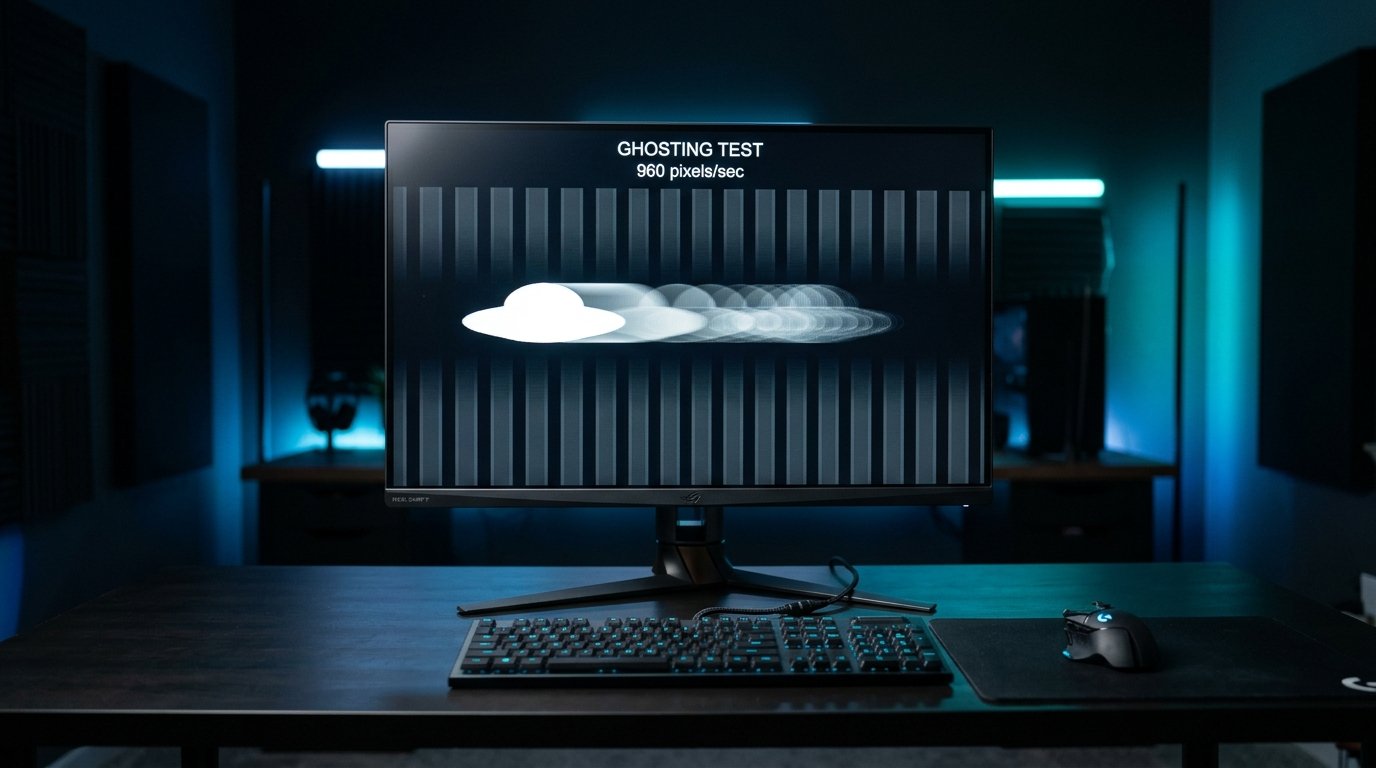
Monitor ghosting is one of the most frustrating display issues encountered by gamers, content creators, and everyday computer users. Whether you are panning a camera in a fast-paced shooter, scrolling through a dense document in dark mode, or watching high-action sports, ghosting appears as a faint, blurry shadow or trail trailing behind moving objects on your screen.
Unlike hardware damage, monitor ghosting does not mean your display is permanently broken. In many situations, it is a byproduct of panel transition speeds, mismatched overdrive voltages, or improperly configured refresh rates. Understanding what causes ghosting allows you to optimize your display settings and reduce motion artifacts dramatically.
In this guide, we break down what monitor ghosting is, explore its technical root causes, guide you through practical step-by-step fixes, explain how to test your panel, compare ghosting with motion blur and screen tearing, and answer common questions.
What Is Monitor Ghosting?
Monitor ghosting is a visual artifact in which an image trail, streak, or faint silhouette lingers behind moving elements across the display. As pixels struggle to change color quickly enough to match incoming frames from the computer, previous frames remain partially visible on subsequent refresh cycles.
Common visual symptoms of monitor ghosting include:
- Faint dark or colored trails dragging behind moving characters or cursors
- Smearing and illegibility when scrolling text over dark or gray backgrounds
- Loss of target tracking and fine visual detail during swift camera pans in video games
- A "muddy" or sluggish feel during motion despite reaching high frame rates
- Bright, glowing, or discolored halos outlining objects (known specifically as inverse ghosting or pixel overshoot)
It is crucial to distinguish between regular ghosting and inverse ghosting. Regular ghosting is characterized by dark or muted smears caused by sluggish pixel transitions. Inverse ghosting (overshoot) manifests as glowing white, cyan, or inverted trails caused by overly aggressive voltage compensation pushing pixels beyond their destination values.
What Causes Monitor Ghosting?
Ghosting stems from a physical mismatch between how fast your computer produces frames and how quickly the individual pixels on your monitor can transition from one color to another. Here are the five core factors behind the issue:
Slow Pixel Response Time
Pixel response time, measured in milliseconds (ms), represents the duration required for a liquid crystal pixel to shift from one shade to another (typically measured as Gray-to-Gray, or GtG). Response time is distinct from refresh rate (measured in Hz).
If your monitor refreshes every 6.94 milliseconds (which is the frame interval for 144Hz) but the physical liquid crystals need 12 milliseconds to fully change color, the pixel will not complete its transition before the next frame is rendered. The lingering remnants of the prior color create an optical motion trail.
Incorrect Overdrive Settings
To overcome slow liquid crystal response times, monitor manufacturers incorporate an internal feature known as Pixel Overdrive (also called Response Time Compensation, Trace Free, or AMA). Overdrive applies extra voltage to liquid crystals to accelerate their physical reorientation.
When overdrive is set too low or disabled entirely, pixels transition slowly, producing standard dark ghosting trails. Conversely, when overdrive is turned to its maximum setting, the voltage overshoots the target color, causing liquid crystals to bounce past the desired hue and creating glaring inverse ghosting halos.
Low Refresh Rate
A monitor operating at a standard 60Hz redraws the entire screen once every 16.67 milliseconds. At this frequency, moving objects remain stationary on the retina for a relatively long period, creating perceived retinal blur and accentuating physical pixel trail transitions.
Increasing your display to 120Hz (8.33ms), 144Hz (6.94ms), or 240Hz (4.17ms) dramatically shortens the time each frame rests on screen, significantly improving clarity as long as the pixel response times can keep pace.
Display Panel Characteristics
The panel technology inside your display plays a decisive role in its susceptibility to ghosting:
- VA (Vertical Alignment) Panels: Known for deep black levels and high contrast ratios (often 3000:1 or higher), VA panels have notoriously slow dark-level transitions. Shifting from black to dark gray can take 25ms to 40ms, resulting in heavy "black smearing" in shadowy scenes.
- IPS (In-Plane Switching) Panels: IPS displays deliver consistent response times across light and dark transitions (typically 3ms to 6ms GtG on modern gaming panels), striking an excellent balance between motion clarity and wide viewing angles.
- TN (Twisted Nematic) Panels: Historically the fastest LCD technology for response time, TN panels exhibit minimal ghosting, but suffer from narrow viewing angles and washed-out contrast.
- OLED & QD-OLED Panels: Because organic LEDs emit light directly and do not rely on twisting liquid crystals, OLED pixels switch in a fraction of a millisecond (0.03ms to 0.1ms). OLED panels virtually eliminate pixel response ghosting altogether (as explored in our deep dive into QD-OLED vs WOLED).
Graphics and Display Configuration
Software settings and communication channels can also induce motion anomalies. If your operating system defaults to 60Hz instead of your monitor's rated 144Hz or 240Hz, or if Variable Refresh Rate (VRR / G-Sync / FreeSync) causes frame pacing dips below the panel's tuned overdrive window, motion smearing will become much more noticeable.
How to Fix Monitor Ghosting
While you cannot alter the physical liquid crystal chemistry of an existing panel, you can significantly diminish motion smearing and eradicate inverse ghosting by calibrating settings properly.
Increase Your Monitor's Refresh Rate
Many users purchase a high-refresh-rate gaming monitor but never activate its full speed in Windows or macOS, inadvertently leaving the display locked at 60Hz.
To increase refresh rate in Windows 11 / 10:
- Right-click on your desktop and select Display settings.
- Scroll down and click on Advanced display.
- Locate the dropdown labeled Choose a refresh rate.
- Select the maximum native refresh rate supported by your monitor (e.g., 144Hz, 165Hz, or 240Hz).
To increase refresh rate in macOS:
- Open the Apple Menu and select System Settings.
- Navigate to Displays.
- Select your external monitor and click the Refresh Rate dropdown.
- Choose your display's maximum rated frequency or ProMotion setting.
You can instantly check your operating frame cadence in real time using our free Refresh Rate Test.
Adjust the Monitor's Overdrive Setting
Adjusting overdrive is the single most effective way to eliminate ghosting and inverse ghosting. Overdrive settings are found inside your monitor's physical On-Screen Display (OSD) menu, accessed via buttons or a joystick on the monitor itself.
Different monitor manufacturers assign different names to this setting:
- ASUS: "Trace Free" (scale from 0 to 100; 60 is usually optimal)
- LG: "Response Time" (Off, Normal, Fast, Faster; "Fast" is usually best)
- Dell / Alienware: "Response Time" (Fast, Super Fast, Extreme; "Fast" or "Super Fast" is recommended)
- Samsung: "Response Time" (Standard, Faster, Fastest; "Faster" is recommended)
- BenQ: "AMA" (Off, High, Premium; "High" is recommended)
- Acer: "Overdrive" (Off, Normal, Extreme; "Normal" is recommended)
- Gigabyte: "Overdrive" (Quality, Balanced, Speed; "Balanced" is recommended)
Golden Rule: Avoid selecting the highest tier (such as "Extreme" or "Fastest"). Manufacturers include these modes to advertise theoretical "1ms" marketing claims, but in practice, they trigger extreme voltage overshoot and glaring bright halos.
Enable the Correct Display Mode
Many displays include dedicated picture presets such as "Game Mode", "FPS", or "Cinema". Certain eco-friendly or energy-saving modes throttle pixel voltages, exacerbating smearing. Switch to "Standard" or "User" mode for full control over color profiles and response timings.
Some monitors also include backlight strobing features (often branded as ELMB, ULMB, DyAc, or Motion Blur Reduction). By strobing the backlight in synchronization with refresh frames, these modes substantially reduce human eye tracking motion blur. Note that strobing generally reduces screen brightness and cannot always be used concurrently with variable refresh rates.
Check Your Cable and Connection
Using an obsolete or subpar display cable can limit your available resolution and bandwidth, locking you out of optimal refresh rates. For gaming and high refresh rates, DisplayPort 1.4 or HDMI 2.1 is strongly recommended over older HDMI 1.4 or 2.0 connections.
Ensure that connectors are seated securely and avoid daisy-chaining multiple passive USB-C or HDMI adapters that can introduce signal integrity degradation. For a detailed breakdown of port capabilities, read our comparison on HDMI vs DisplayPort.
Update Your Graphics Driver
Corrupted or outdated graphics card drivers can cause synchronization bugs between your operating system and monitor scalar chip. Perform a clean driver update for your GPU:
- Download the latest driver suite from NVIDIA, AMD, or Intel.
- Choose the "Clean Installation" option during the setup wizard to reset custom overrides.
- Open the NVIDIA Control Panel or AMD Software and ensure that the display output is configured to use its native resolution and full RGB dynamic range.
- Disable aggressive post-processing motion interpolation or sharpness filters in third-party software that may introduce artificial trailing.
For additional guidance on related display anomalies, consult our guide on why a monitor looks blurry and how to troubleshoot monitor flickering.
Test Different Refresh Rates and Overdrive Combinations
Monitor overdrive behavior is often tuned for a specific refresh rate. If you use G-Sync or FreeSync (Variable Refresh Rate) and your frame rate fluctuates between 60 FPS and 144 FPS, an overdrive setting tuned for 144Hz may cause severe overshoot whenever frame rates drop down toward 60 FPS.
Higher-end monitors feature "Variable Overdrive" to adapt voltage dynamically across the refresh spectrum. If your monitor lacks variable overdrive, select a conservative overdrive setting (like "Normal" or "Balanced") that remains artifact-free at lower frame rates.
How to Test Your Monitor for Ghosting
Evaluating whether your adjustments have resolved ghosting requires standardized, repeatable motion tests:
- The Blur Busters UFO Ghosting Test: The most recognized test worldwide is the Blur Busters UFO Motion Test. This browser utility moves alien spaceships across alternating background bands at precise pixel-per-frame velocities. Observe the trailing space behind each UFO:
- If you see a dark or colored smear behind the ship, you have standard ghosting (increase overdrive or refresh rate).
- If you see a bright white or cyan glowing trail behind the ship, you have inverse ghosting / overshoot (lower overdrive by one step).
- If the ship lines remain crisp and separated, your display response is properly balanced.
- High-Contrast Window Dragging: Open a window containing white text on a dark background (such as a command prompt or text editor). Drag the window rapidly in circles. If the text smears into an unreadable gray haze, your dark pixel transitions are lagging.
- Browser Screen Diagnostic Suite: Run our free Monitor Test and Refresh Rate Test to verify panel synchronization and ensure color gradients render smoothly without signal drops.
- Chase Camera Smartphone Test: Photograph the screen using a smartphone camera with manual shutter speed set to approximately 1/4 the refresh interval while moving the phone at the same speed as the on-screen object. This captures the exact length of the motion trail for objective comparisons.
Monitor Ghosting vs. Motion Blur vs. Screen Tearing
Display motion artifacts often get confused with one another. Here is how monitor ghosting compares to eye-tracking motion blur, inverse ghosting, screen tearing, and display flickering:
| Display Issue | Visual Symptoms | Primary Technical Cause | How to Resolve It |
|---|---|---|---|
| Monitor Ghosting | Dark, sluggish trails or smears trailing moving objects | Slow pixel response time (GtG); liquid crystals take too long to turn | Increase refresh rate; increase monitor overdrive from Off to Normal/Fast |
| Inverse Ghosting | Bright glowing halos or discolored coronas in front/behind objects | Excessive overdrive voltage (pixel overshoot); crystal over-rotation | Lower monitor overdrive setting (e.g. from Extreme to Fast/Normal) |
| Motion Blur | Soft, general lack of focus across the scene during quick movement | Sample-and-hold retinal persistence in human vision | Increase refresh rate (144Hz+); enable backlight strobing (BFI / ELMB) |
| Screen Tearing | Horizontal line splits where top and bottom parts of the frame misalign | GPU output frame rate is desynchronized from monitor refresh cycle | Enable V-Sync, G-Sync, or AMD FreeSync in graphics settings |
| Display Flickering | Screen brightness strobing, pulsing, or intermittent black flashes | Faulty display cable, unstable refresh rate, or VRR brightness fluctuation | Replace display cable; stabilize refresh rate; update GPU drivers |
Can Monitor Ghosting Damage Your Screen?
A common concern among monitor owners is whether severe ghosting causes permanent physical harm to the display. The definitive answer is no.
Monitor ghosting is an optical transition latency issue, not an electrical breakdown or structural flaw. Liquid crystals merely require a few milliseconds longer to reorient themselves when changing states. As soon as movement halts, the pixels rest at their accurate target color without any lasting consequence.
Ghosting must not be confused with permanent display defects:
- Dead Pixels: Completely non-functional subpixels that remain perpetually dark due to a failed transistor (learn more in our Dead Pixel Guide).
- Stuck Pixels: Subpixels permanently energized in a fixed red, green, or blue state (learn how to address them in our guide on dead vs stuck pixels or try our Stuck Pixel Test).
- Burn-In: Permanent non-uniform luminance degradation of organic subpixels on OLED screens after thousands of hours displaying static elements.
Verify Your Monitor's Refresh Rate & Health
Inspect your display for frame rate pacing, test for dead pixels across full-screen color planes, and evaluate panel uniformity directly in your browser.
Frequently Asked Questions
What is the difference between monitor ghosting and inverse ghosting?
Regular monitor ghosting leaves a dark or blurry trail behind moving objects because pixels transition too slowly. Inverse ghosting (pixel overshoot) leaves a bright, glowing, or inverse-colored corona trail because excessive overdrive voltage pushes pixels past their target color.
Does a higher refresh rate completely eliminate monitor ghosting?
A higher refresh rate shortens frame display intervals and significantly improves motion clarity, but it does not fix slow pixel response times. If the physical liquid crystals take longer to switch than the refresh window (e.g., transitions taking 12ms on a 144Hz display that refreshes every 6.94ms), ghosting trails will remain visible.
Why do VA panels exhibit worse ghosting than IPS panels?
VA (Vertical Alignment) liquid crystals require significantly more physical rotational energy to transition between dark shades and medium grays. While bright transitions are fast, dark-to-medium transitions often take 20ms to 40ms, causing noticeable black smearing in dark scenes.
Should I set my monitor overdrive to the highest setting?
No. In almost all monitors, the highest overdrive setting (such as Extreme, Fastest, or 100) causes aggressive voltage overshoot, producing severe inverse ghosting and distracting luminous halos. Setting overdrive to a medium setting (such as Fast, Normal, or 60 to 80) usually delivers the cleanest motion.
Can monitor ghosting be caused by a faulty graphics card or cable?
Monitor ghosting is primarily an optical panel hardware trait related to pixel response time. However, faulty cables or misconfigured GPU driver refresh rates can lock a monitor to 60Hz instead of its rated high refresh rate, worsening perceived motion blur and smear.
Can monitor ghosting permanently damage your screen?
No. Monitor ghosting is a temporary visual artifact of dynamic pixel transition speeds and does not cause permanent damage, burn-in, or pixel defects. It disappears immediately as soon as motion stops.
Final Thoughts
Monitor ghosting does not mean your display is defective. In most cases, it is simply the natural behavior of liquid crystal response times operating with uncalibrated settings. By understanding how pixel response time, refresh rate, and overdrive interact, you can dramatically improve clarity.
Start with the most impactful adjustments: confirm that Windows or macOS is running at your panel's highest supported refresh rate, open your monitor's OSD menu to tune overdrive to its optimal middle tier, and test the results using the Blur Busters UFO test. If you are shopping for a new monitor and motion clarity is your paramount concern, look for fast IPS panels with certified G-Sync/FreeSync tuning, or consider OLED displays for virtually instant pixel transitions.
Taking a few minutes to calibrate your monitor's overdrive and refresh rate can transform your gaming, reading, and productivity experience without spending a penny on new hardware.