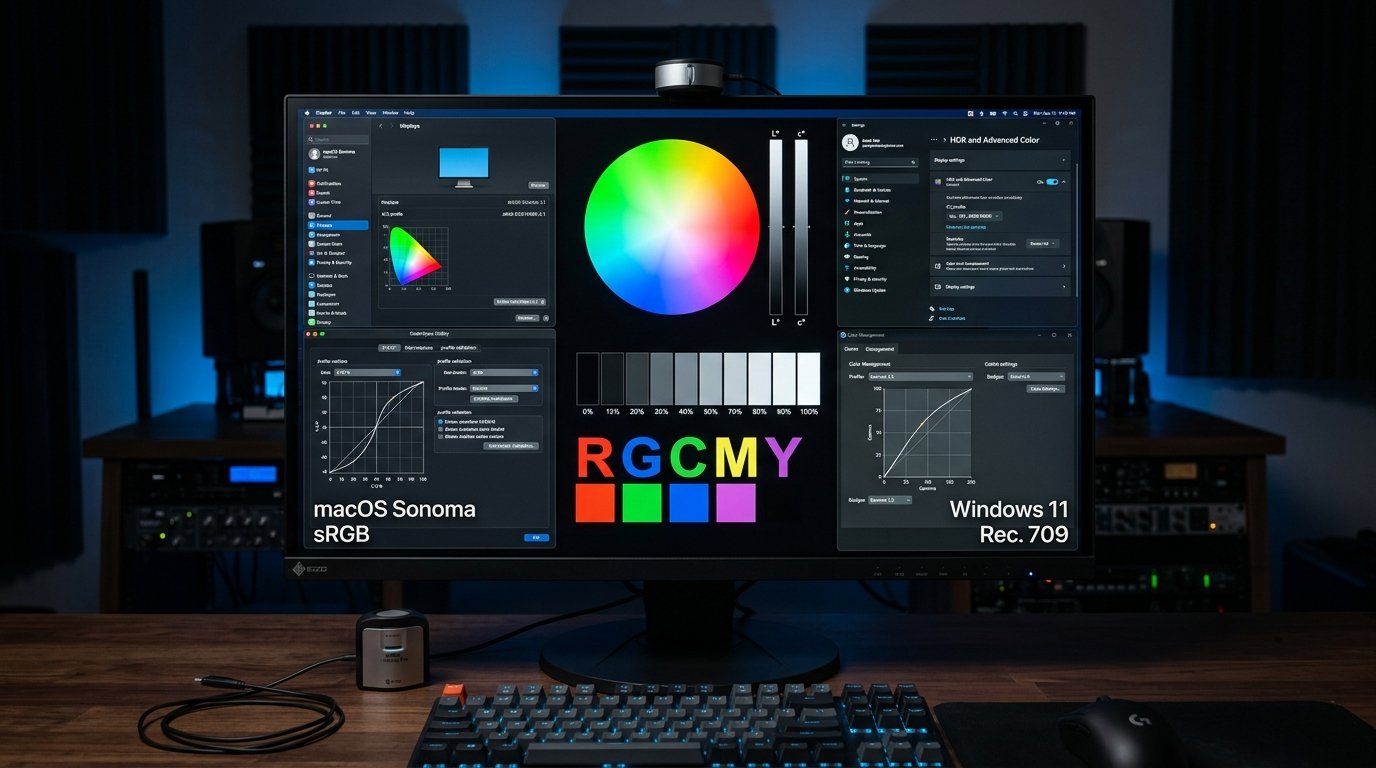
You connect your monitor to your desktop PC and everything looks crisp, punchy, and vibrant. Later, you plug in your work laptop, a MacBook, or a gaming console, and suddenly the display appears completely different: colors look washed out, text looks slightly blurry, the screen is unexpectedly dark, or the white balance carries a heavy yellow tint.
It is easy to assume that the monitor itself is failing or that a hardware defect has suddenly developed. However, in the vast majority of cases, the monitor is not broken. Computer monitors are essentially passive display panels; they simply illuminate whatever digital video signal and color encoding the connected host device feeds them.
When you switch devices, you are switching the underlying graphics processing unit (GPU), color management engine, video cable bandwidth, quantization range, and operating system display pipeline. Before you conclude that your screen is defective, verify that the physical panel itself is healthy by running a free full-screen check at DeadPixelTests.com. Once you have confirmed there are no stuck subpixels or panel faults, you can systematically troubleshoot the device-level configurations that cause your monitor to look different on another device.
Here are the nine most common reasons why your monitor changes appearance across different computers, laptops, and consoles, along with step-by-step instructions to get a consistent, accurate picture on every device.
1. Different Color Profiles and Display Settings
Every operating system manages color differently. Windows, macOS, ChromeOS, and Linux each maintain their own independent color management architectures, lookup tables (LUTs), and International Color Consortium (ICC) profiles.
When you plug Device A into your monitor, Windows might apply a customized manufacturer ICC profile tailored to your specific monitor model. When you plug in Device B (such as a company laptop), it might be running on a generic Plug-and-Play driver with the default sRGB IEC61966-2.1 profile, or even an incorrect profile left behind from a previous office monitor.
Furthermore, macOS relies on its native ColorSync engine. Mac computers generally target a Display P3 color gamut by default, whereas Windows PCs typically assume standard sRGB unless wide-gamut Auto Color Management (ACM) is enabled. As a result, plugging a Mac into the exact same monitor often produces visibly richer saturation and subtle gamma differences compared to a Windows PC.
How to Match Color Profiles Across Devices:
- On Windows: Press Win + R, type
colorcpl, and press Enter. Select your display from the dropdown, check Use my settings for this device, and verify which ICC profile is designated as(default). For detailed walkthroughs, read our guide on how to fix monitor color profiles in Windows 11. - On macOS: Go to System Settings > Displays. Under the Color Profile dropdown, compare the active profile against your Windows machine. Choosing the standard sRGB IEC61966-2.1 profile on both machines provides the closest baseline visual alignment.
2. Different Graphics Card Settings (NVIDIA, AMD & Intel)
Your graphics processing unit does not simply output raw video frames; its driver software applies active post-processing color filters, digital vibrance tweaks, and dynamic contrast adjustments before the video stream leaves the port.
If your desktop PC is powered by a dedicated NVIDIA GeForce graphics card and your laptop relies on integrated Intel Iris Xe or AMD Radeon graphics, their driver control panels will output noticeably different imagery out of the box:
- NVIDIA Control Panel: Features proprietary sliders such as Digital Vibrance (which boosts color saturation) and Desktop Color Enhancement. If you previously boosted Digital Vibrance on your desktop, standard laptop video will appear washed out by comparison.
- Intel Graphics Command Center: Often enables aggressive battery-saving features by default on laptops, including Display Power Saving Technology (DPST). DPST dynamically dims the screen backlight and alters image contrast depending on whether you are viewing a light or dark window, causing distracting luminance shifts.
- AMD Radeon Software: Includes features like Vari-Bright (another battery-conserving contrast reducer) and Custom Color Temperature controls that may be enabled on your laptop but absent on your desktop.
To eliminate these discrepancies, open your GPU control panel on each device and set color controls to Standard Default or toggle the option allowing other applications to manage desktop color.
3. Different Resolution and Display Scaling
One of the most jarring surprises when connecting a second device is discovering that text, icons, and interface menus suddenly look blurry, oversized, or pixelated. This almost always comes down to native resolution mismatch or operating system display scaling.
Every modern LCD, IPS, VA, and OLED monitor has a fixed grid of physical pixels. For instance, a 27-inch 1440p monitor has exactly 2560 horizontal pixels by 1440 vertical pixels. If your desktop outputs 2560 × 1440, every digital pixel maps 1:1 to a physical transistor, resulting in razor-sharp clarity.
However, if you connect an older laptop or a basic USB hub that can only output 1920 × 1080 (1080p Full HD), the monitor's internal scaler must stretch the smaller image across its 1440p pixel grid. This interpolation causes noticeable subpixel blur, muddy text, and soft graphics.
You can instantly test your active screen resolution, CSS viewport, and Device Pixel Ratio (DPR) using our free browser-based Screen Resolution Test. If you notice blurriness, consult our in-depth diagnosis on why your monitor looks blurry to fix DPI scaling conflicts.
4. Different Brightness, Contrast, and Picture Modes
Many users do not realize that modern computer monitors store their physical On-Screen Display (OSD) hardware settings independently for each input port.
When you plug your desktop into DisplayPort 1, the monitor might be operating in its calibrated Standard picture preset with 50% brightness and 50% contrast. But when you plug your laptop or gaming console into HDMI 1, the monitor may switch to a completely separate profile—such as Vivid, Game, FPS, or an energy-saving Eco Mode.
How to Synchronize Monitor Hardware Presets:
- Connect Device A and press the physical buttons or joystick on your monitor to open the On-Screen Display (OSD) menu.
- Note down the active Picture Preset, Brightness, Contrast, Color Temperature (e.g. Warm / 6500K), and Gamma (2.2).
- Switch the monitor input to Device B and open the OSD menu again.
- Ensure the exact same picture mode and numerical values are applied to Device B's input channel. Turn off features like Dynamic Contrast Ratio (DCR) or Auto-Dimming, which artificially alter brightness based on on-screen content.
5. HDMI and DisplayPort Can Produce Different Results
The type of physical video connection you use between your devices directly influences how color data is transmitted. Connecting a computer via DisplayPort versus HDMI can produce dramatic differences in black levels and contrast.
The primary culprit is RGB Quantization Range (Full vs. Limited):
- Full Range RGB (0–255): Designed for computer monitors. Pure black is represented by level 0 and pure white by level 255, delivering complete dynamic contrast.
- Limited Range RGB (16–235): Originally developed for broadcast televisions. Black begins at level 16 and white tops out at level 235.
DisplayPort connections almost universally default to Full RGB. However, when you connect a laptop or desktop via HDMI, graphics drivers (particularly NVIDIA and Intel drivers) frequently misidentify the external monitor as a living room television and drop the output signal to Limited RGB.
If your monitor expects Full RGB but your laptop sends Limited RGB, blacks become elevated into murky dark grays, colors look washed out, and contrast collapses. Conversely, if your computer sends Full RGB to a display set to Limited, shadows are completely crushed into black blobs. Read our comprehensive analysis on HDMI vs. DisplayPort cables to ensure you are using the best connection protocol.
6. HDR Settings May Change the Appearance of the Screen
High Dynamic Range (HDR) dramatically alters how an operating system renders desktop applications, windows, and web pages.
If your gaming desktop has HDR enabled in Windows Settings (Win + Alt + B), the entire color pipeline switches from standard sRGB gamma 2.2 to the high dynamic range BT.2020 / PQ curve. But if you disconnect your desktop and connect your work laptop where HDR is turned OFF, the monitor will revert to standard dynamic range (SDR).
Even more confusingly, enabling HDR on Windows often causes standard desktop interfaces to look duller than in SDR on budget-to-midrange displays (such as edge-lit monitors certified for DisplayHDR 400). This occurs because Windows tone-maps SDR desktop applications into an HDR container, frequently dimming overall luminance. If this happens to your setup, check out our guide on fixing washed out HDR colors on Windows.
7. Night Light and Blue Light Filters
If your monitor looks noticeably yellower, warmer, or redder on one computer compared to another, software blue-light reduction is almost certainly running in the background.
Modern operating systems incorporate automated blue light filters designed to reduce eye strain during evening hours:
- Windows Night Light: Warms the display white point toward an amber spectrum (often between 3500K and 5000K). It can be configured to turn on automatically at sunset or run on a custom schedule.
- macOS Night Shift & True Tone: Apple laptops include built-in ambient light sensors. True Tone dynamically shifts the monitor's color temperature in real time to match the ambient lighting in your room, making external screens look warmer indoors.
- Third-Party Utilities: Apps like f.lux, Asus Splendid, or Dell ComfortView may be running silently in the system tray of your laptop.
To verify, open Windows Settings > System > Display and turn off Night light. On a Mac, navigate to System Settings > Displays and toggle off both True Tone and Night Shift to restore clean 6500K daylight white.
8. Different Refresh Rates and Color Output Formats
Display smoothness and color depth are limited by the video output port and GPU capabilities of each connected device.
A desktop connected to a high-end graphics card can easily drive a monitor at 144 Hz or 240 Hz with full uncompressed 10-bit RGB color. However, if you connect an ultrabook through an inexpensive USB-C dock or HDMI dongle, bandwidth limitations may force the system to negotiate a lower refresh rate (such as 60 Hz or even 30 Hz) and compress color using chroma subsampling (YCbCr 4:2:2 or 4:2:0).
Chroma subsampling discards color resolution to save bandwidth. While video footage still looks acceptable, fine computer text develops ugly color fringing and blurry borders around black-on-white characters. You can inspect your active refresh rate and frame pacing right now with our free Refresh Rate Test and check color transitions with the Grayscale & Gradient Test.
9. How to Determine Whether the Monitor or Device Is Responsible
When faced with visual differences across computers, how can you definitively confirm whether the monitor or the connected device is at fault? Use this simple troubleshooting methodology:
5-Step Display Isolation Checklist
10. Frequently Asked Questions
A warm yellow or amber tint on a laptop is almost always caused by software blue-light reduction features such as Windows Night Light, macOS Night Shift, or Apple True Tone. True Tone automatically uses the laptop's ambient light sensor to warm the display's color temperature. Disabling these features restores a neutral 6500K white point.
Yes. HDMI connections frequently default graphics cards (especially NVIDIA and Intel) to Limited RGB range (16–235) because HDMI was originally designed for televisions. If your monitor expects Full RGB (0–255), blacks will look elevated, grey, and washed out. Setting the GPU output dynamic range to Full RGB in your graphics control panel instantly restores deep contrast.
macOS and Windows render text differently. Apple removed subpixel font antialiasing (subpixel ClearType) in macOS Mojave, optimizing its font engine for ultra-high-density Retina screens (218+ PPI). On standard 24-inch or 27-inch 1080p and 1440p monitors (around 92–109 PPI), macOS text can appear fuzzy unless font smoothing adjustments or HiDPI virtual scaling tools are used.
Yes. Most modern monitors store brightness, contrast, color temperature, and picture mode presets independently for each physical input port (HDMI 1, HDMI 2, DisplayPort, USB-C). If your desktop uses DisplayPort with 'Standard' mode and your laptop uses HDMI with 'Vivid' or 'Eco' mode, the image will look noticeably different until you match the OSD settings.
Consoles often enable HDR automatically when connected to HDR-compatible monitors. On monitors with entry-level HDR (such as DisplayHDR 400), HDR tone mapping frequently compresses peak brightness, making standard UI elements look dim. Setting the console to SDR or matching the RGB Range (Automatic/Full) in console video output settings resolves the issue.
To achieve consistent display output: (1) standardise the monitor's physical OSD preset to 'Custom' or 'sRGB' on all input ports; (2) ensure all connected devices output native resolution; (3) configure graphics drivers on all systems to Full RGB (0–255) 8-bit or 10-bit; (4) turn off Night Light, True Tone, and ambient auto-brightness; and (5) assign standard sRGB IEC61966-2.1 ICC profiles across all operating systems.
Conclusion
When your monitor looks different on another device, the display panel itself is almost never damaged. A monitor simply visualizes the specific digital instructions it receives.
By systematically reviewing color profiles, GPU dynamic ranges (Full vs. Limited RGB), native resolutions, port-specific monitor OSD presets, and blue light filters, you can eliminate unwanted color shifts and achieve a dependable, uniform visual experience across every PC, laptop, and console on your desk.
Whenever you connect a new device or notice visual oddities, take 60 seconds to perform an initial screen diagnostic to confirm pixel integrity and verify that your hardware is operating at peak performance.
Inspect Your Screen for Display & Pixel Defects
Run an instant browser-based diagnostic test to check your display panel for dead pixels, color uniformity, resolution accuracy, and refresh rates.
Related Screen Diagnostic Tools
Dead Pixel Test
Inspect your screen across solid RGBW backgrounds to pinpoint dead pixels and subpixel defects.
Start Dead Pixel Test →Screen Resolution Test
Verify native resolution, physical pixels, and Device Pixel Ratio (DPR) across connected devices.
Check Resolution →Refresh Rate & Hz Test
Measure real-time monitor refresh rate, frame timing jitter, and motion fluidity.
Test Refresh Rate →